Branding and page design
Give every Rowie guest page your look - logo, cover photo, colour, fonts and layouts in one brand kit, and a different design for any menu, event or booking.
Guests see your business on several pages: the QR menu, table ordering, event pages and booking pages. Rowie styles all of them from one brand kit, and any single page can change parts of it.
Set up your brand kit
Open Settings → Branding in the portal (owners and admins).
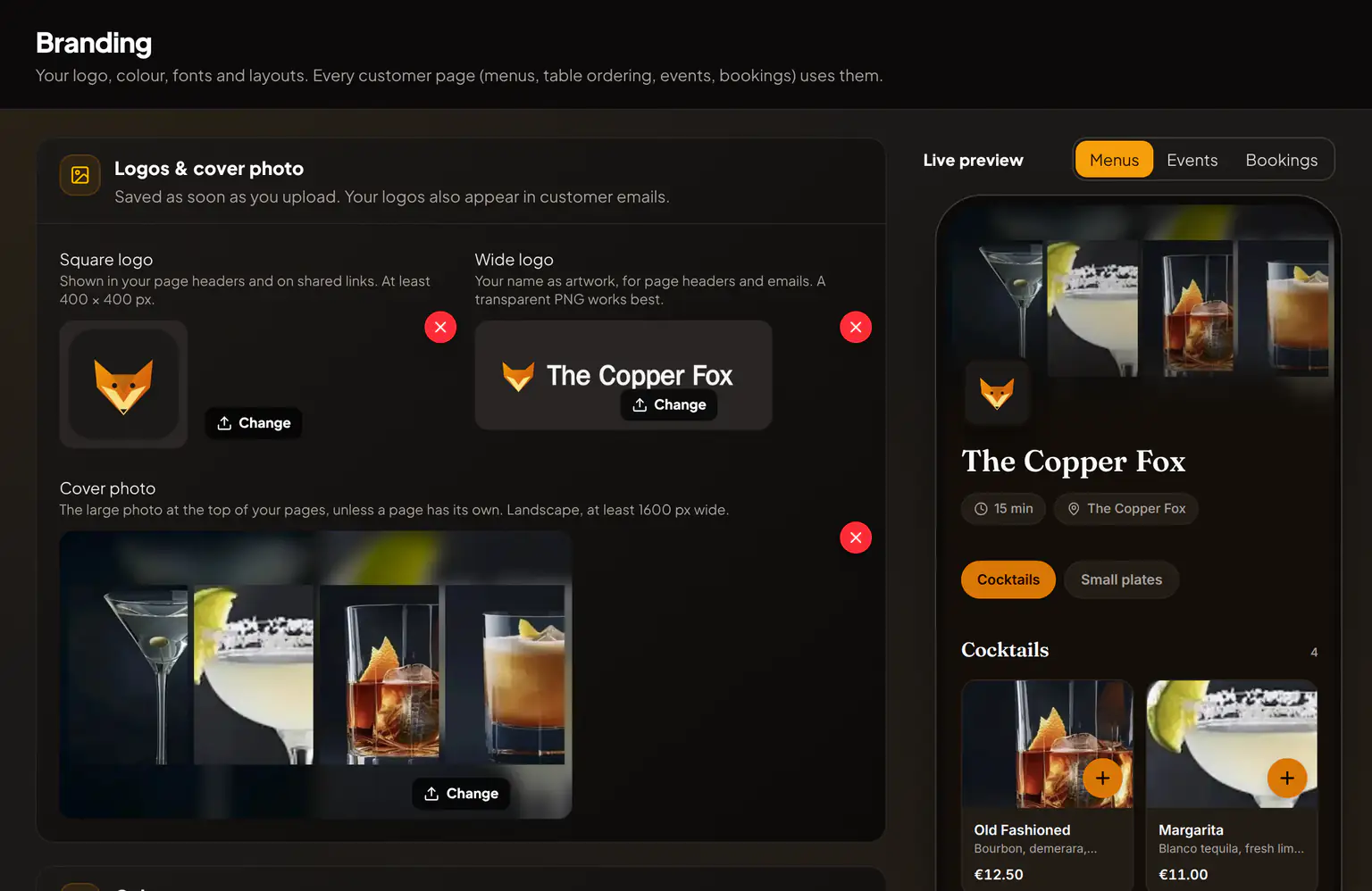
- Logos & cover photo. Upload a Square logo (at least 400 × 400 px), a Wide logo (your name as artwork, a transparent PNG works best) and a Cover photo (landscape, at least 1600 px wide). Images save as soon as you upload them. Your logos also appear in emails to guests.
- Colour. Pick your Brand colour for buttons, highlights and links. Any colour works: Rowie chooses the text colour on top so it always reads well, and tells you if it adjusted anything.
- Style. Choose a Theme (Light, Dark or Match the guest's device), a Fonts pairing (Modern, Editorial, Classic, Bistro, Bold or Friendly) and Corners (Sharp, Soft or Round).
- Page layouts. Choose defaults per kind of page:
- Menus: the menu layout (Classic Grid, List, Cards, Magazine, Mosaic or Compact), the section navigation (Pills, Tabs or None), and whether to show descriptions and photos.
- Events: the Event header: Full cover photo, Poster or Minimal.
- Bookings: services as Cards, a List or Large photos, with or without prices and durations.
- Save. Every guest page updates straight away, including pages guests already have open.
Give one page its own look
Each menu, event and booking page has a Look of this page panel. Every setting there has a Use brand kit switch: leave it on to follow the kit, or turn it off and choose something else for this page only. Click Save design when you're done.
| Page | Where to find its design | Its own images |
|---|---|---|
| Menu (QR menu and every table QR) | Menus → the menu → Design (Pro) | Cover photo for this menu |
| Event | Events → the event → Design tab | Cover photo (16:9) and poster (4:5) |
| Booking page | Bookings → the page → Settings → Branding | Cover image and logo |
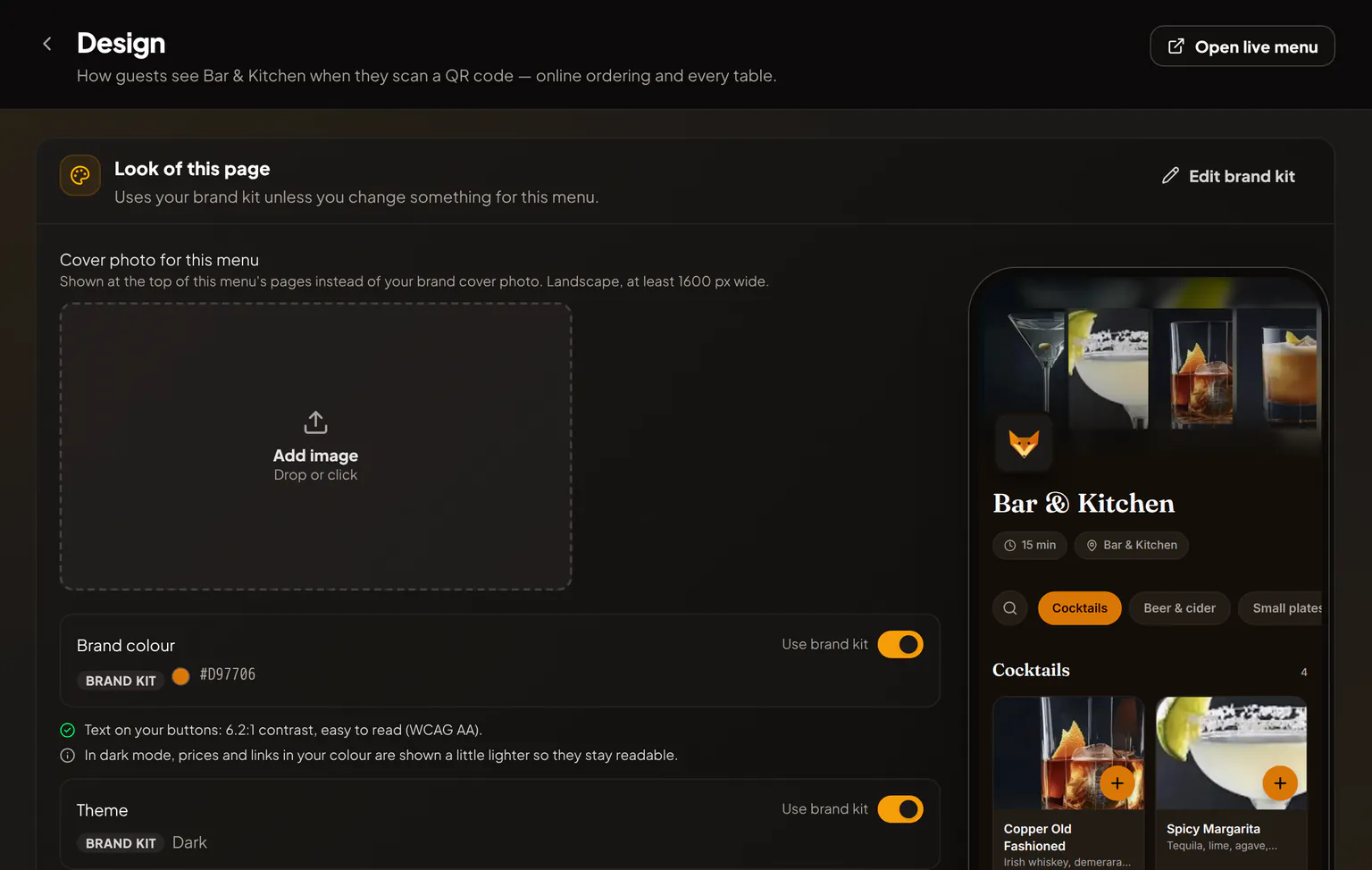
A page without its own cover photo uses the brand kit's. An event with the Poster header and no poster gets one drawn in your colours.
Languages on guest pages
- Guest pages open in your business language. Guests can switch language with the picker at the top of the page.
- Menu items and descriptions are translated automatically for guests who switch.
- Confirmations, tickets and other emails go out in the language of the page the guest used.
Your portal language is set in Settings → Organization → Language & region.
Related articles
- Online ordering and menu QR codesTurn on online ordering for a Rowie menu so guests scan a QR code, order and pay or pay at pickup, then follow their order live on their phone.
- Creating events and selling ticketsCreate a ticketed or free RSVP event in Rowie, set ticket types, add a cover photo and poster, publish the event page and manage tickets and refunds.
- Booking pages and reservationsSet up a Rowie booking page with services, opening hours, party sizes and online payment, then run the day's reservations from the host stand view.
- Floor plans and table QR codesDraw your rooms in Rowie, place tables with seats and shapes, choose how QR orders are paid and print a QR code for every table so guests order from their seat.